 FloServer
 docs
How to use every part of FloServer: the window, its settings and the command line.
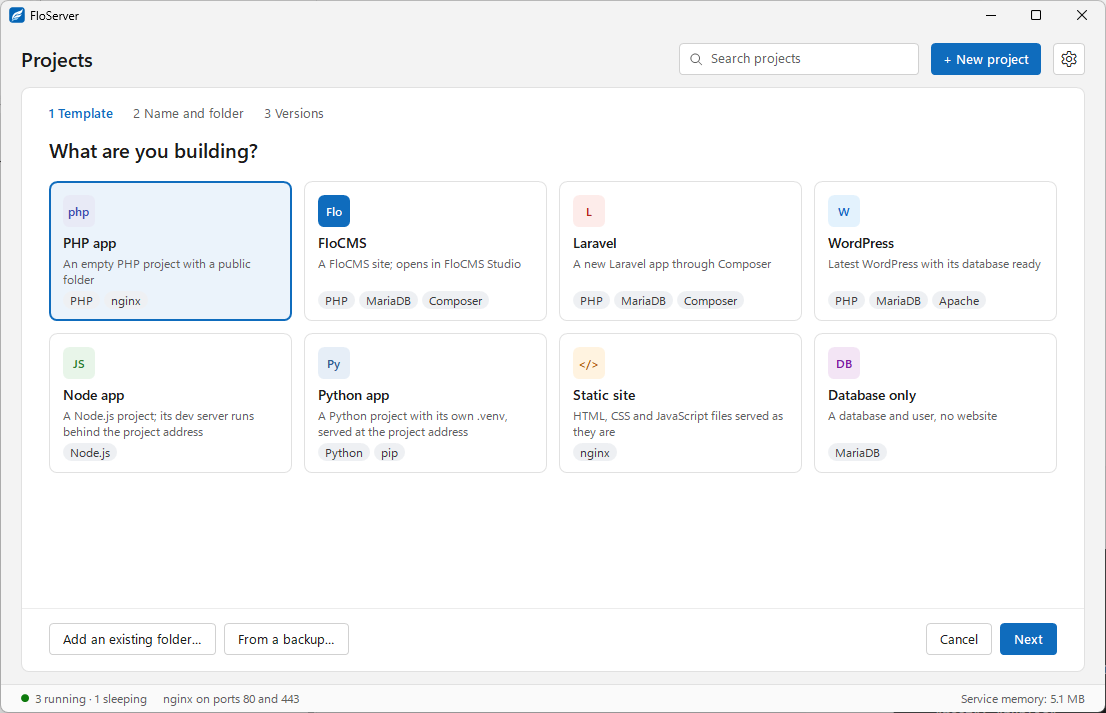 Get startedInstall FloServer, pick your runtimes and create your first project.
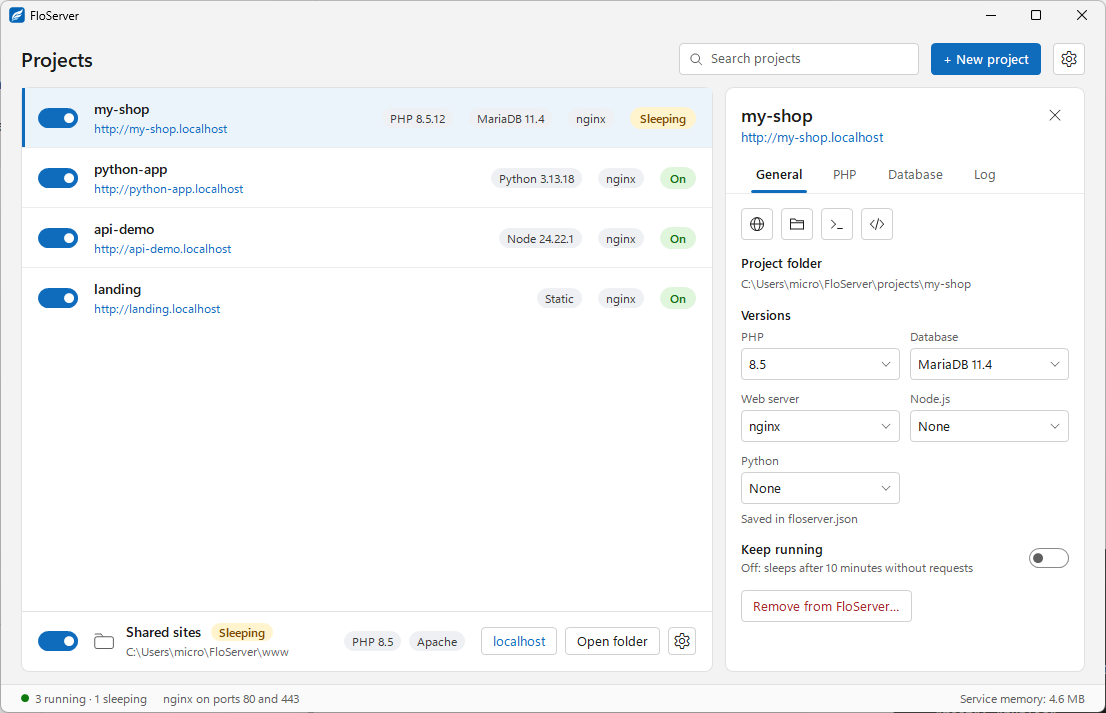 The projects windowEvery project, its state and versions, and its panel.
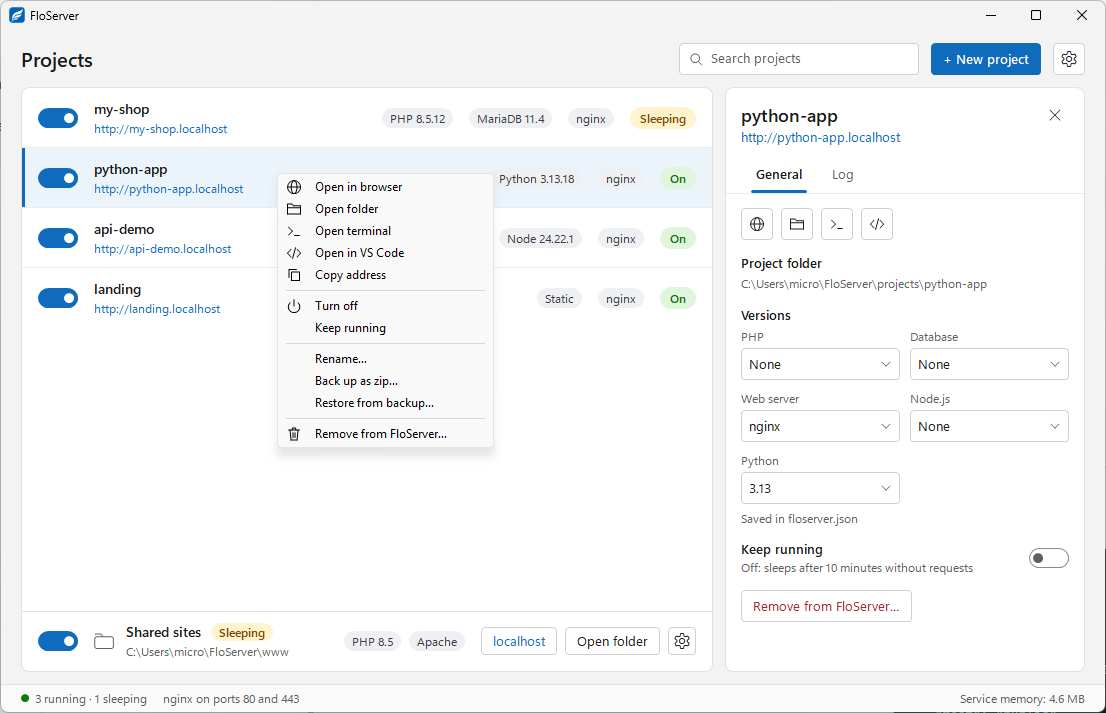 Right-click menuOpen, rename, back up, restore or remove a project.
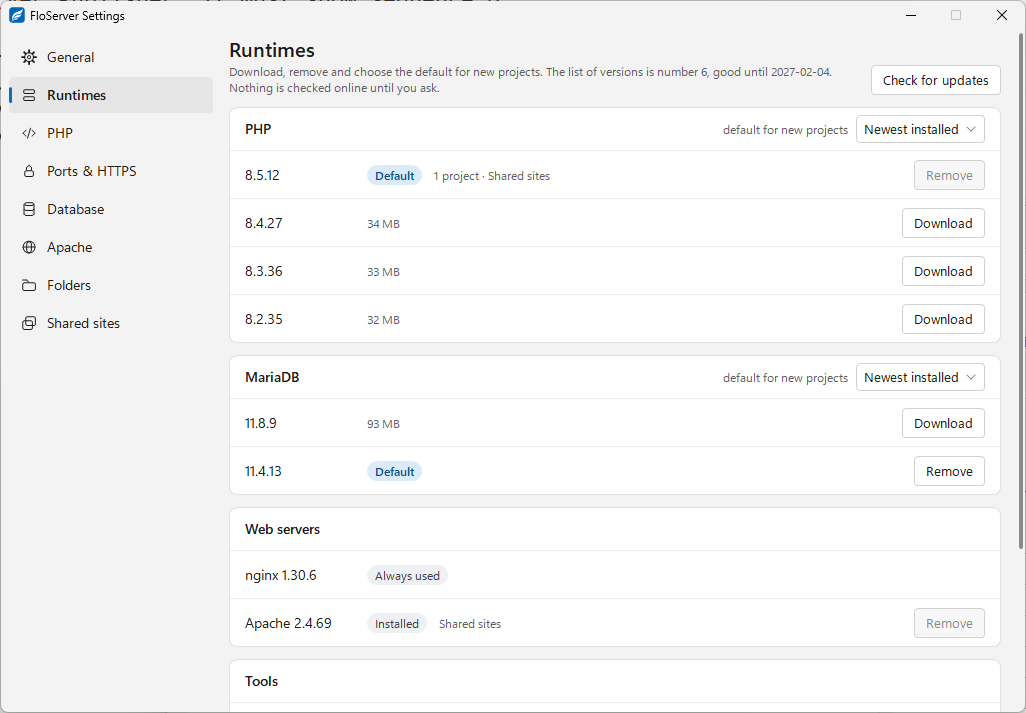 SettingsRuntimes, PHP, ports and HTTPS, Apache, folders and more.
Getting started
- Install FloServerRequirements, the setup and SmartScreen.
- First startLanguage, runtimes and trusting local HTTPS.
- Create a projectEight templates, an existing folder, or a backup.
Using the app
- The projects windowThe list, states, shared sites and the status bar.
- Project panelThe General, PHP, Database and Log tabs.
- Right-click menuEverything you can do with a project.
- Databases and phpMyAdminA database per project, .env lines, phpMyAdmin.
- Shared sites (www)Every folder in one www folder, at localhost.
- Backup and restoreA project as a zip with its database.
- Rename a projectA new name and address, optionally a new folder.
Settings
- GeneralLanguage, theme, updates, remove FloServer.
- RuntimesDownload and remove versions.
- PHPExtensions and php.ini for each PHP version.
- Ports & HTTPSWeb ports, HTTPS and the certificate authority.
- ApacheModules and your own httpd.conf lines.
- FoldersWhere things live, and freeing space.
Projects and terminal
- floserver.jsonEvery key a project's settings file can hold.
- Terminal commandsphp, node and the others at each project's versions.
- The flo commandEverything from the terminal.
Help
- UpdatesHow FloServer checks for and installs new versions.
- Remove FloServerUninstall, and what stays on your PC.
Docs for FloServer 0.1.0Something wrong on this page? Email us